局域网内其他主机需要访问WSL2发布的服务时,可按下面的方法操作:
手动转发
获得虚拟机ip
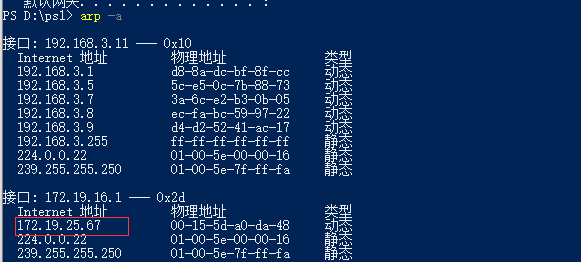
如图所示虚拟机ip为172.19.25.67(每次启动都会变)
设置端口转发(需要管理员权限运行)
1
2
3
4
5
6
7
| netsh interface portproxy add v4tov4 listenport=【宿主机windows平台监听端口】 listenaddress=0.0.0.0 connectport=【wsl2平台监听端口】 connectaddress=【wsl2平台ip】
#如:
#netsh interface portproxy add v4tov4 listenport=181 listenaddress=0.0.0.0 connectport=181 connectaddress=172.17.127.89
# 删除端口转发
netsh interface portproxy delete v4tov4 listenport=【宿主机windows平台监听端口】 listenaddress=0.0.0.0
|
使用脚本每次启动时进行端口转发
配置脚本
脚本代码如下:
更改ports=@ 对应的端口即可
1
2
3
4
5
6
7
8
9
10
11
12
13
14
15
16
17
18
19
20
21
22
23
24
25
26
27
28
29
30
31
32
33
34
35
| $remoteport = bash.exe -c "ifconfig eth0 | grep 'inet '"
$found = $remoteport -match '\d{1,3}\.\d{1,3}\.\d{1,3}\.\d{1,3}';
if( $found ){
$remoteport = $matches[0];
} else{
echo "The Script Exited, the ip address of WSL 2 cannot be found";
exit;
}
#[Ports]
#All the ports you want to forward separated by coma
$ports=@(181);
#[Static ip]
#You can change the addr to your ip config to listen to a specific address
$addr='0.0.0.0';
$ports_a = $ports -join ",";
#Remove Firewall Exception Rules
#iex "Remove-NetFireWallRule -DisplayName 'WSL 2 Firewall Unlock' ";
#adding Exception Rules for inbound and outbound Rules
#iex "New-NetFireWallRule -DisplayName 'WSL 2 Firewall Unlock' -Direction Outbound -LocalPort $ports_a -Action Allow -Protocol TCP";
#iex "New-NetFireWallRule -DisplayName 'WSL 2 Firewall Unlock' -Direction Inbound -LocalPort $ports_a -Action Allow -Protocol TCP";
for( $i = 0; $i -lt $ports.length; $i++ ){
$port = $ports[$i];
iex "netsh interface portproxy delete v4tov4 listenport=$port listenaddress=$addr";
iex "netsh interface portproxy add v4tov4 listenport=$port listenaddress=$addr connectport=$port connectaddress=$remoteport";
}
|
1.将脚本保存为 xxxx.ps1
2.使用cmd调用powershell运行脚本,首次执行可能会有报错,因为powershell默认不能直接执行脚本,需要更改一个设置,需在powershell下执行
1
| Set-ExecutionPolicy RemoteSigned
|
使之可以执行ps1脚本。
3.执行netsh interface portproxy show all 查看端口
配置任务计划
- win+r 键入taskschd.msc 打开任务计划
- 创建任务
- 进行配置(如图所示)
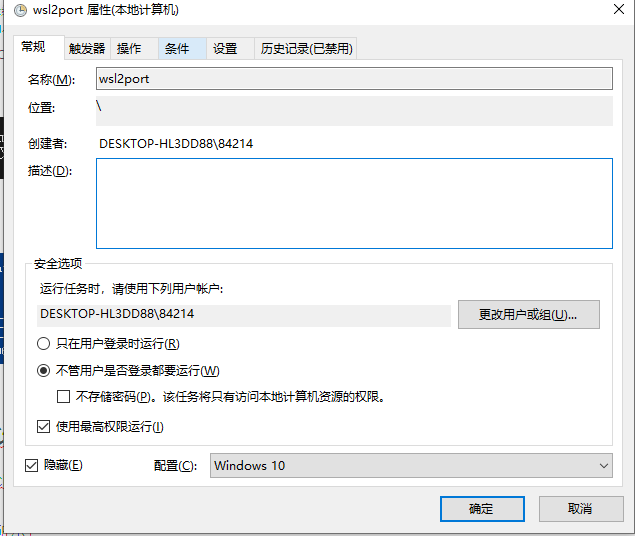
填写名称并隐藏
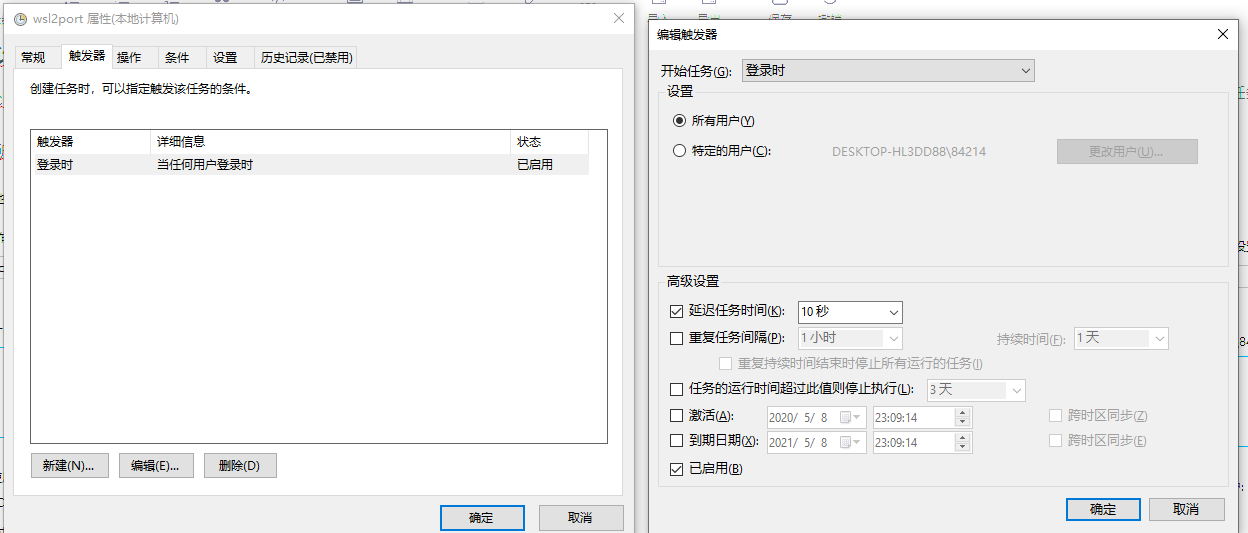
用户登录时触发,延迟10s执行
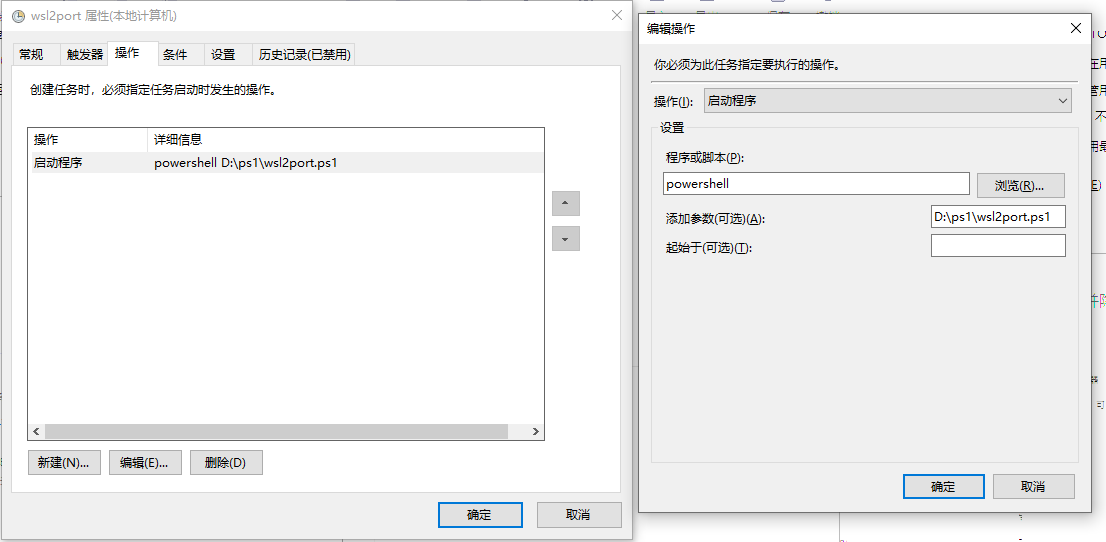
执行的操作为 powershell,将脚本完整路径作为参数
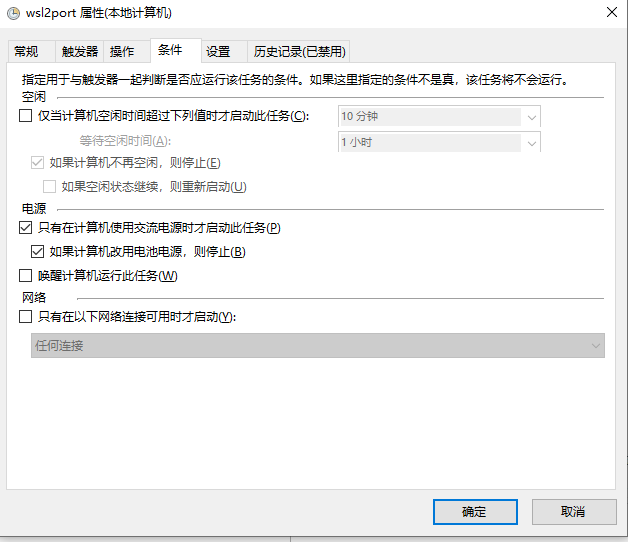
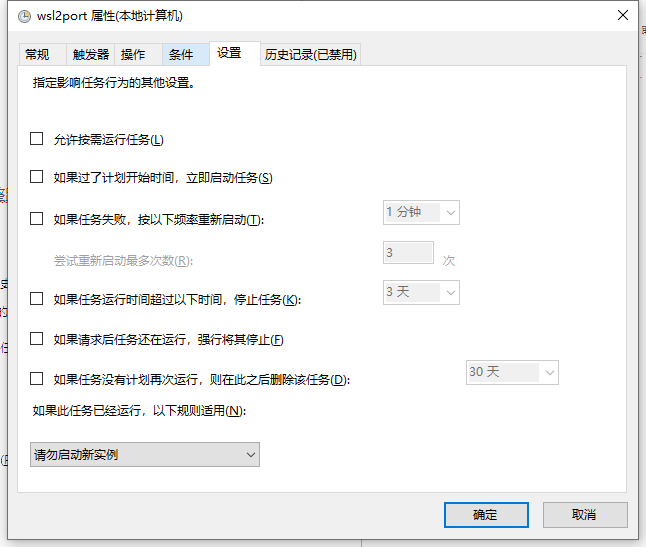
其它一些配置根据自己实际情况进行修改,比如是不是使用笔记本一类的。